ideastack·11 min read·
How to add Stripe subscriptions to your AI-built SaaS (UK guide)
A practical guide to adding recurring Stripe billing to your AI-built SaaS. Covers UK-specific setup including GBP currency, VAT with Stripe Tax, webhooks, customer portal, and a full go-live checklist.
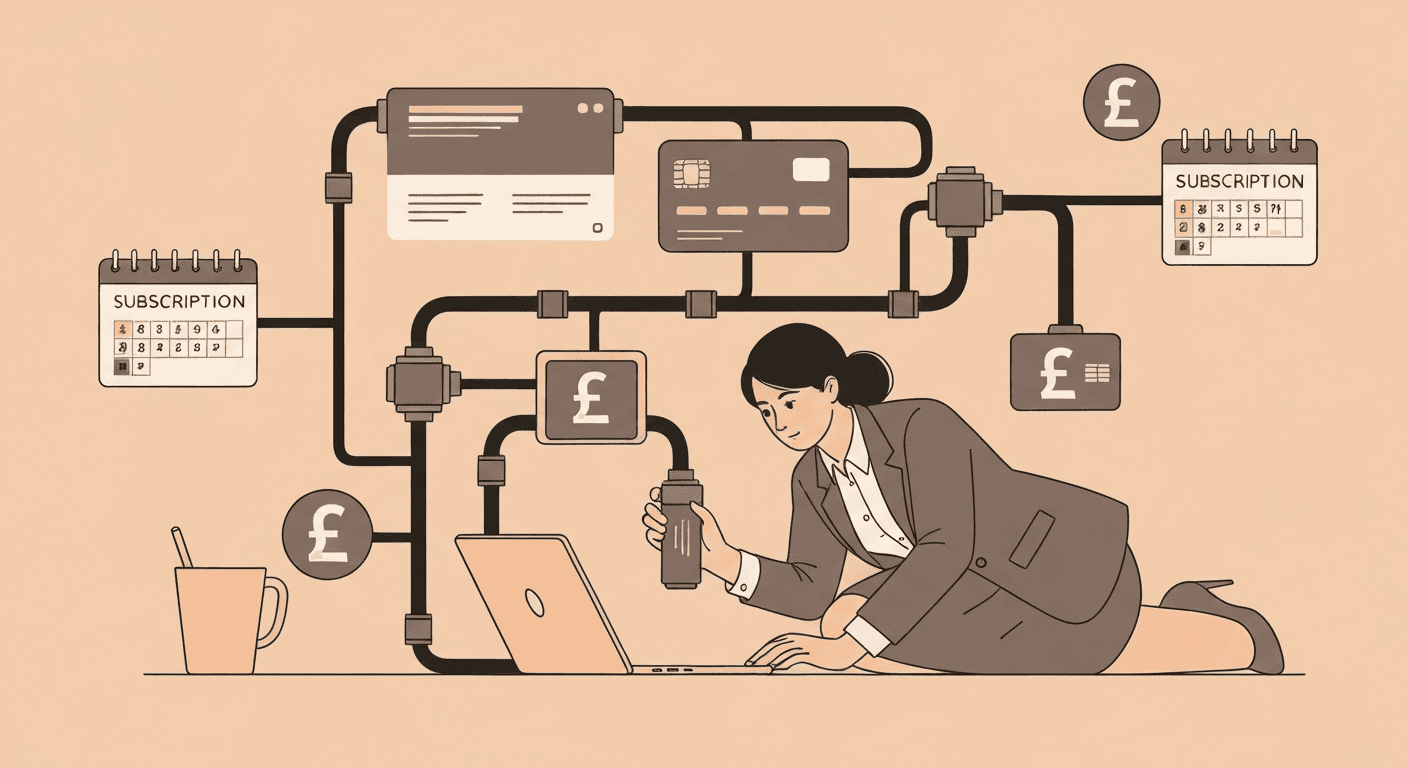
You have built the product. It works. People want to use it. Now you need to charge them -- reliably, automatically, and correctly for the UK market.
Stripe is the standard choice for SaaS billing, and for good reason: it handles subscription management, tax, customer portals, and the full payment infrastructure so you do not have to. But setting it up correctly is not trivial. There are UK-specific considerations around VAT, currency, and compliance that trip up builders who follow tutorials written for a US audience.
This guide walks through the full setup -- from creating your Stripe account to going live -- with UK specifics built in throughout. It is tool-agnostic but references Claude Code for implementation, since that is what most serious builders are using.
Part 1: Stripe account setup (UK-specific)
Creating your account correctly
When you create a Stripe account, you will be asked for your country and currency. For UK builders:
- Country: United Kingdom
- Currency: GBP (British Pounds)
- Business type: Select the appropriate type -- sole trader, limited company, etc.
The currency setting is critical. Stripe ties your account currency to your settlement currency, and you cannot change it after the fact. If you accidentally set up in USD and are charging UK customers, you will face conversion fees and your pricing will look strange (GBP 9.99 becomes $12.47 or some odd number).
UK banking details
You will need to provide:
- UK bank account (sort code + account number)
- VAT registration number (if registered -- see the VAT section below)
- Company registration number (if limited company)
Stripe's verification for UK accounts typically takes 1-2 business days. Set this up before you are ready to launch, not the day of.
Stripe fees for UK businesses
Stripe charges 1.4% + 20p for UK cards and 2.9% + 30p for non-UK/non-European cards. For a GBP 9.99/month subscription paid by a UK customer, Stripe takes approximately GBP 0.34, leaving you GBP 9.65.
There is also a GBP 0.15 + 0.15% fee for Stripe Tax if you use it. For most early-stage UK SaaS products, this is worth every penny.
Part 2: Creating your products and prices
Setting up your subscription product
In Stripe's dashboard, go to Products and create a new product:
- Name: Your product name (e.g., "FeedbackLens Pro")
- Description: What they get (optional but good practice)
- Image: Your product logo if you have one
Under Pricing, add a recurring price:
- Price: your monthly amount in GBP (e.g., 9.00)
- Currency: GBP
- Billing period: Monthly
- Usage type: Licensed (for per-seat or flat-rate plans)
Note the Price ID that Stripe generates (it looks like price_1PxxxxxxxxxxxxxABCD). You will need this in your environment variables.
If you want an annual plan, add a second price on the same product. Stripe lets you have multiple prices per product.
Prompt for Claude Code
Once you have your Price IDs, give Claude Code this prompt to set up the billing infrastructure:
Set up Stripe subscription billing for my SaaS. The environment variables are:
- STRIPE_SECRET_KEY (Stripe secret key)
- STRIPE_PUBLISHABLE_KEY (Stripe publishable key)
- STRIPE_PRICE_ID_MONTHLY (monthly plan price ID)
- STRIPE_WEBHOOK_SECRET (webhook endpoint secret)
- NEXT_PUBLIC_APP_URL (the app's public URL)

I need:
1. /lib/stripe.ts -- Stripe client initialisation (server-side only)
2. /app/api/stripe/checkout/route.ts -- POST endpoint that creates a Stripe Checkout Session for the monthly plan. Accept { priceId } in the request body. Pass user email and userId in metadata. Set success_url to /dashboard?upgraded=true and cancel_url to /pricing
3. /app/api/stripe/webhooks/route.ts -- POST endpoint that handles these events:
   - checkout.session.completed: update the user's subscription_status in the database to 'pro', save stripe_customer_id to their profile
   - customer.subscription.deleted: update subscription_status to 'free'
   - invoice.payment_failed: flag the account (subscription_status = 'payment_failed')
4. /app/api/stripe/portal/route.ts -- POST endpoint that creates a Stripe Customer Portal session using the user's stripe_customer_id

Use Stripe v14 SDK. Parse the webhook with Stripe's constructEventAsync and the raw request body -- do not use express body parser.
Part 3: Checkout session integration
The checkout flow
The simplest billing flow works like this:
- User clicks "Upgrade to Pro"
- Your app creates a Stripe Checkout Session (server-side)
- User is redirected to Stripe's hosted checkout page
- User enters their card details on Stripe's page (you never see card data)
- Stripe redirects back to your
success_url - Stripe fires a
checkout.session.completedwebhook to your server - Your webhook handler updates the user's subscription status in your database
The important thing to understand: the success_url redirect and the webhook are separate events. The redirect happens immediately when the user clicks the Stripe confirmation button. The webhook fires a few seconds later. Do not rely on the redirect to update subscription status -- always use the webhook.
Client-side implementation
On your upgrade button:
async function handleUpgrade() {
  const response = await fetch('/api/stripe/checkout', {
    method: 'POST',
    headers: { 'Content-Type': 'application/json' },
    body: JSON.stringify({ priceId: process.env.NEXT_PUBLIC_STRIPE_PRICE_ID_MONTHLY })
  })
  const { url } = await response.json()
  window.location.href = url
}
This is intentionally simple. You redirect to Stripe's hosted page and let Stripe handle everything.
Part 4: Webhook handling
Webhooks are where most builders get tripped up. Here is what you need to know.
Why webhooks are not optional
Stripe communicates subscription changes to your server via webhooks. Without them:
- You will not know when a payment succeeds
- You will not know when a subscription is cancelled
- You will not know when a payment fails
- Your database will permanently disagree with Stripe's state
Every critical subscription event needs a webhook handler.
The raw body problem
Stripe verifies webhook authenticity by generating a signature from the raw request body. Most web frameworks (including Next.js) parse the request body before your handler runs, which corrupts the signature.
The fix in Next.js App Router:
export async function POST(request: Request) {
  const body = await request.text() // raw text, not parsed JSON
  const signature = request.headers.get('stripe-signature')!

  let event: Stripe.Event
  try {
    event = stripe.webhooks.constructEvent(body, signature, process.env.STRIPE_WEBHOOK_SECRET!)
  } catch (err) {
    return new Response('Webhook signature verification failed', { status: 400 })
  }

  // handle event...
}
If you use request.json() instead of request.text(), your webhook will return 400 on every real Stripe event.
Testing webhooks locally
Stripe provides a CLI for forwarding webhook events to your local dev environment:
stripe listen --forward-to localhost:3000/api/stripe/webhooks
This gives you a local webhook signing secret to use during development. Run this in a separate terminal while you are testing.
Events to handle
At minimum, handle these:
| Event | What to do |
|---|---|
| checkout.session.completed | Mark user as pro, save Stripe customer ID |
| customer.subscription.updated | Sync subscription status (useful for plan changes) |
| customer.subscription.deleted | Mark user as free |
| invoice.payment_failed | Mark account as payment_failed, trigger dunning email |
| invoice.payment_succeeded | Confirm subscription is active (good for renewals) |

Part 5: Customer portal
The customer portal is Stripe's built-in subscription management UI. It lets customers:
- View their current plan
- Update payment method
- Download invoices
- Cancel their subscription
Setting it up properly takes about 10 minutes and saves you building this yourself.
In Stripe's dashboard, go to Settings > Billing > Customer portal. Enable it and configure:
- Which plans customers can switch between
- Whether customers can cancel immediately or at period end
- Your terms and privacy policy URLs
Then your portal route is simple:
export async function POST(request: Request) {
  const { customerId } = await getAuthenticatedUser(request)

  const session = await stripe.billingPortal.sessions.create({
    customer: customerId,
    return_url: `${process.env.NEXT_PUBLIC_APP_URL}/dashboard`
  })

  return Response.json({ url: session.url })
}
Add a "Manage subscription" button in your dashboard that calls this endpoint and redirects to the returned URL.
Part 6: Handling VAT in the UK
This is the section US tutorials skip entirely. It matters for UK builders.
The basics
If your UK business has revenue over GBP 85,000 (the VAT registration threshold), you must charge VAT on B2C sales. For digital services sold to UK customers, you charge 20% VAT.
For B2B sales (businesses buying your tool), VAT is more complex -- if the buyer is VAT-registered, they can claim it back, and for EU customers you may need to handle reverse charge.
Use Stripe Tax -- do not try to do this manually
Stripe Tax handles UK VAT automatically. It:
- Calculates the correct VAT rate for each transaction based on customer location
- Collects customer tax information (VAT number for B2B)
- Generates VAT-compliant invoices
- Produces reports for your VAT return
To enable it, go to Stripe dashboard > Tax > Enable. Then add automatic_tax: { enabled: true } to your Checkout Session creation:
const session = await stripe.checkout.sessions.create({
  // ... other params
  automatic_tax: { enabled: true },
  tax_id_collection: { enabled: true } // lets B2B customers enter their VAT number
})
That is all. Stripe handles the rest.
Pricing: to include or exclude VAT?
UK consumer convention is to show prices including VAT. UK B2B convention is to show prices excluding VAT (plus VAT).
If you are targeting businesses, show ex-VAT pricing with a "+VAT" note. If you are targeting consumers, show VAT-inclusive prices.
Your pricing page should be explicit: "GBP 9/month + VAT" or "GBP 10.80/month inc. VAT". Stripe's checkout will show the final VAT-inclusive price at checkout regardless.
Part 7: Going live checklist
Before you switch from Stripe test mode to live mode, work through this:
Stripe configuration
- Live mode API keys added to your hosting environment (not test keys)
- Live webhook endpoint created in Stripe dashboard pointing to your production URL
- Live webhook secret added to your hosting environment
- Stripe Tax enabled in live mode (separate from test mode)
- Customer portal configured in live mode
- Your business details verified (Stripe may request additional verification)
Application
- Checkout flow tested end-to-end in test mode with Stripe test cards
- Subscription cancellation flow tested (via customer portal in test mode)
- Failed payment flow tested (use test card 4000 0000 0000 0341)
- Webhook handler correctly processes all events in test mode
- Error states handled gracefully (what does the user see if checkout fails?)
- Success redirect works and reflects updated subscription status
UK-specific
- GBP currency confirmed throughout (not USD)
- VAT shown correctly on checkout for UK customers
- Invoice download available in customer portal
- Privacy policy and terms linked from checkout and customer portal
Test cards for UK scenarios
| Card number | What it tests |
|---|---|
| 4242 4242 4242 4242 | Successful UK payment |
| 4000 0025 0000 3155 | 3D Secure authentication required |
| 4000 0000 0000 9995 | Declined -- insufficient funds |
| 4000 0000 0000 0341 | Successful charge, payment fails on renewal |
Part 8: Common mistakes and how to avoid them
Setting up in USD instead of GBP. Cannot be fixed after the fact -- requires a new Stripe account. Set GBP from the start.
Using parsed body in webhook handler. Use request.text() not request.json(). The webhook will silently fail otherwise.
Trusting the redirect URL instead of the webhook. The redirect fires even if the user closes the tab mid-process. Always update subscription status from the webhook, not the redirect.
Not testing cancellation. Most tutorials test sign-up. Make sure you test the full subscription lifecycle including cancellation, lapsed payment, and re-subscription.
Forgetting Stripe Tax in live mode. Stripe Tax settings are separate in test and live mode. Enabling it in test does not enable it in live. Go through your configuration in live mode separately.
Not saving the Stripe customer ID. When a user upgrades, save their Stripe customer ID to your database. You need it to create customer portal sessions and to look up billing history. Missing this means you cannot let users manage their billing.
Frequently asked
Do I need to be VAT-registered to use Stripe in the UK?
No -- Stripe works for non-VAT-registered businesses too. Just do not enable the VAT collection features until you are registered. Stripe Tax will only apply VAT once you have configured your registration details.
Can I use Stripe if I have a limited company in the UK?
Yes. Stripe supports sole traders, partnerships, and limited companies. For a limited company, you will need your Companies House registration number during verification.
What happens if my customer's payment fails?
Stripe's Smart Retries will automatically retry failed payments at optimised intervals. You should also handle the invoice.payment_failed webhook to notify the customer and potentially restrict access. Stripe's dunning emails can handle the communication automatically if you enable them.
How do I handle refunds?
Refunds are handled in the Stripe dashboard or via the API. For subscription refunds, you would issue a refund on the last invoice. Stripe does not automatically cancel the subscription when you issue a refund -- those are separate actions.
Can I offer a free trial with Stripe subscriptions?
Yes -- add trial_period_days to your Price object in Stripe, or specify it at checkout session creation time. The card is collected at sign-up but not charged until the trial ends. This is often better than a freemium model for driving conversions.